
Design
Your fonts
SummaryThe fonts that come with the app, the Fonts page, and how to find, copy, export, import, or delete a font.
Your fonts are the digitized fonts and bought alphabets saved on this computer. They are what the Font picker offers when you type on the hoop. A computer font is not one of them until you digitize it.
Fonts that come with the app
The first time the app opens, it adds five digitized fonts you can type with right away.
| Font | Style |
|---|---|
| Collegiate Block Satin | Varsity block letters |
| Crimson Text Satin | Serif |
| Montserrat Satin | Sans serif |
| Riverside Script Satin | Connected script |
| Sancreek Satin | Fishtail display |
They are ordinary saved fonts: open, edit, rename, export, or delete them like your own. A built-in font you delete does not come back, even after an update. One you edited is never overwritten. One you left alone is replaced when an update brings a newer copy. In the Library they are under Built in.
Pick a font while you type
- Select a text object on the hoop.
- Click the Font picker under Words.
- Type in Find a digitized font to search by the font's name or the computer font it came from.
- Click a font.
Your fonts (badge Digitized) holds the built-in fonts and the ones you digitized. Bought alphabets (badge Bought) holds machine letters you imported. Each row is drawn with the font's own letters. Typing with them is in Lettering.
The Fonts page
The Fonts page keeps every font on this computer in one place. To open it, click Text, then Digitize a font. Project → Font Digitizer and Digitize a font at the bottom of the font picker open it too.
- Your digitized fonts shows a card for each font, drawn with its own letters, with how many letters are digitized and the computer font it came from.
- A bought alphabet's card reads Bought, its number of letters, and Change mappings.
- Digitize a computer font lists the fonts on this device: Digitize a font.
- Type in Search your fonts to narrow the cards by name or by the computer font.
- Click a card. A digitized font opens in the font digitizer on its first digitized letter. A bought alphabet opens Change mappings.
In the top bar, Editor returns to the hoop and Library opens the Library. Import a font file adds a .breezefont. Import letters I bought imports a folder of machine letters: Bought letter alphabets. Saved fonts also show in the Library.
Delete a font
- On the Fonts page, click the trash icon at the lower right of the font's card.
- Read Delete this file?, then click Delete permanently.
The font is removed from this device. This cannot be undone. Cancel keeps it.
Save as, export, and rename
Open a font from Your digitized fonts. Its top bar has Save, Save as, Export font file, and Share.
- Click Save as.
- Choose a folder and a name. It suggests the font's name with “Copy”.
- Save. You keep working in the new font. The original stays as it was last saved.
If that name is already a saved font, the app asks you to choose a new name.
Save keeps the font on this computer and in the open project. If you opened the font from a .breezefont file, Save updates that file too. To rename a font, type the new name in the name box at the top left, then click Save.
Export font file writes a .breezefont you can move to another computer or send to a friend. Share posts it to your profile: Share. Saving and exporting a font need an activated copy: Account and license.
On iPad, iPhone, and Android, Save as asks for the new name instead of opening a file dialog.
Add a font you already have
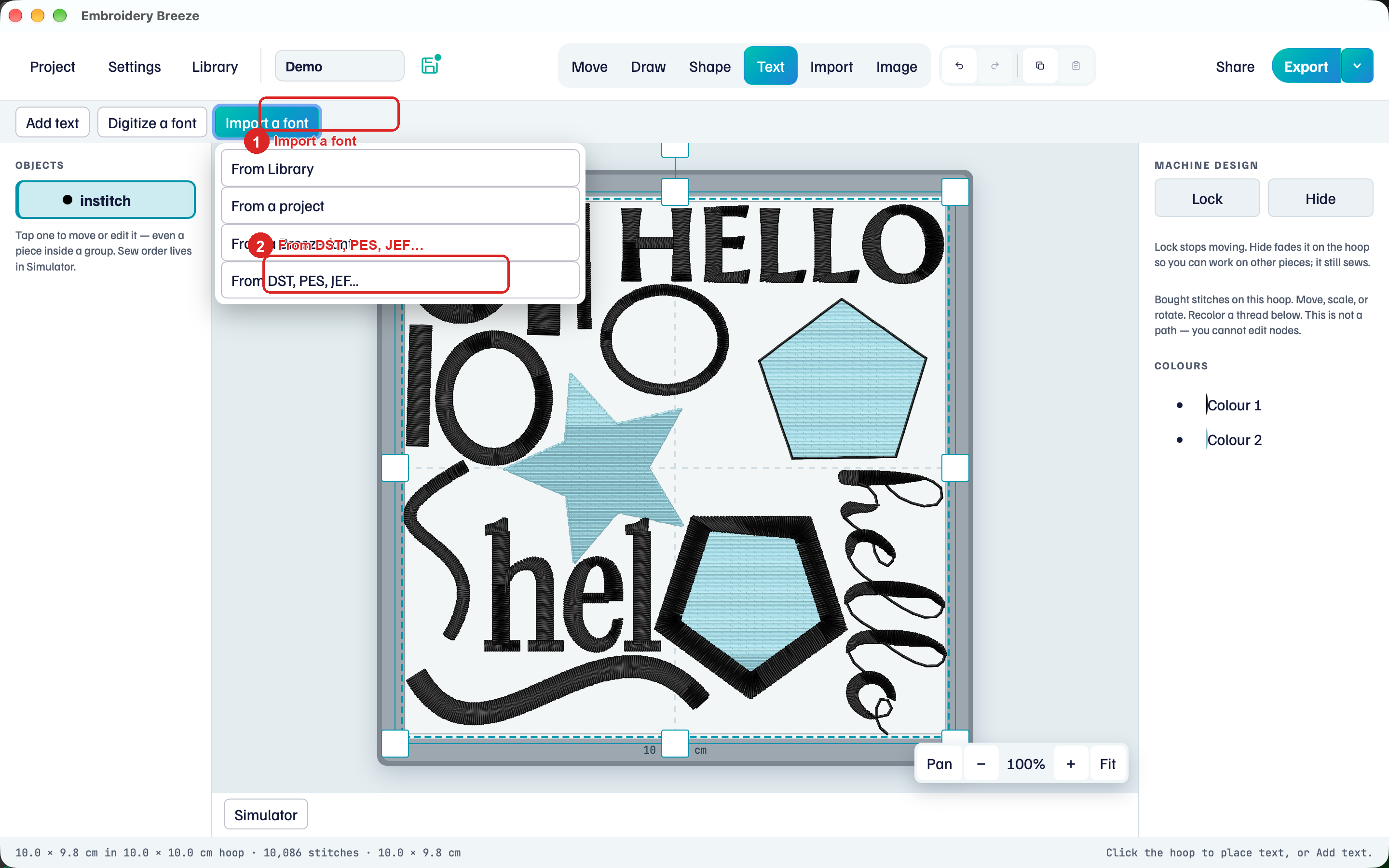
Click Text, then Import a font.
- From Library opens the Library so you can pick a saved font.
- From a project adds the digitized fonts saved inside a
.breezefile. - From a Breeze font opens a
.breezefontfile. - From DST, PES, JEF… imports a folder of bought machine letters: Bought letter alphabets.
The font joins Your fonts or Bought alphabets, ready in the font picker.