
Design
Bought letter alphabets
SummaryImport a folder of machine letters and type with them on the hoop.
A bought alphabet is a folder of machine letters you already own, such as A.pes or B.dst. Embroidery Breeze maps those files to keys so you can type. The stitches stay frozen: scale, recolor, and place them. There is no outline or fill from paths, and no Digitize it.
Import the folder
Import a font is on the Text tool row, next to Digitize a font. It is also at the bottom of the font picker.
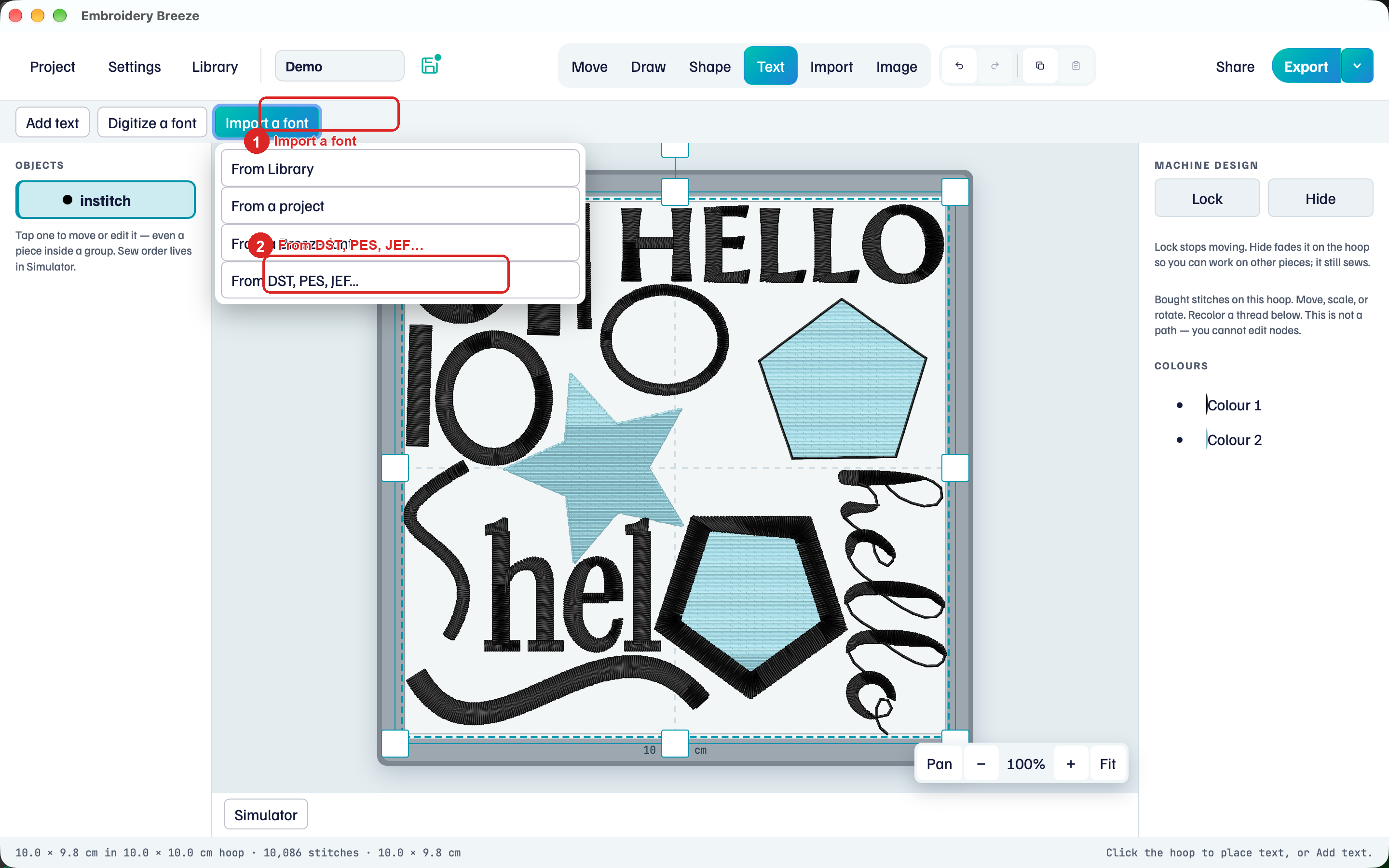
- Click Text, then Import a font.
- Click From DST, PES, JEF….
- Open your font folder in Import a font folder. Use Choose folder… to open your computer’s folder picker, or click a place in the list, such as Downloads, Desktop, Documents, or a drive.
The Up arrow opens the parent folder. Click a folder in the list to open it. You can also enter a full Folder path and click Go.
Import letters I bought on the Fonts page opens the same window: Your fonts.
See the files and check their letters
- Check the filenames shown in the folder. You do not need to select individual files. Suggestions such as
Bu.dst→ B (uppercase) appear beside supported files. - Click Import this folder. Choose one font and machine-format folder: subfolders are included up to four levels, so choosing a whole multi-font bundle can mix alphabets.
Supported letter files are DST, PES, PEC, JEF, EXP, VP3, and XXX. Other files say Not a letter file. A .zip says Unzip first: unzip it, then open the folder inside.
The window changes to Check your letters.
- Check the stitch preview, filename, size, and Keyboard letter for each design. Filename mappings are suggestions:
AuandBusuggest uppercase letters;AlandBlsuggest lowercase. - Correct a suggested letter by typing its character. Files with unrecognized names remain in the review; assign a character or explicitly check Skip. Each included design needs exactly one character.
- Check Font name. It starts as the folder’s name.
- Click Import font. If two files map to the same character at the same size, skip the extra copy or return to one machine-format folder. Different sizes can remain in the same alphabet.
Files to import and Missing mappings count what is left to fix. Import font stays grey until every included file has one character. Back to folder returns to the folder list.
After saving, Change mappings opens automatically so you can see and adjust the imported alphabet. If a text object was selected, it switches to the new alphabet at the size the letters were digitized for.
Cancel closes the window without importing. If Breeze cannot read the folder or save the font, it shows an error so you can correct the problem and try again.
BX stays with the seller’s software. Unzip the machine letters that came with it (PES, DST, and so on) and import those.
If the name already exists, Embroidery Breeze saves a distinct name instead of overwriting.
Type with Bought
- Click Add text.
- Open the font picker. Bought alphabets lists the import. The badge is Bought.
- Type. Missing letters are skipped, with a notice.
Pick the thread under Thread in the right panel. A bought alphabet keeps its proportions: there is no Letter width, Slant, or Box, and the side handles of the text box scale it evenly. Move letters works on bought letters: Lettering.
Keep the lettering near the alphabet’s digitized size. Play Simulator.
Change mappings
If a letter landed on the wrong key, Change mappings.
- Select the text. Click Change mappings.
- Click the letter.
- Click the key it should use in the row above, or type it. If that key is taken, the two swap.
- Click Done.
Click a letter again to cancel. On the Fonts page, the bought alphabet’s card opens Change mappings too.
Scale notice
The notice names the reference height in millimetres, or a range when the alphabet has letters at more than one size. Scaling far from that size can sew too dense or too sparse.
Turn into path is for digitized fonts. Bought letters stay stitches, and they cannot be appliqué.