
Files
Send wirelessly
SummarySend the hoop to a Brother or Baby Lock Wi-Fi machine on the same network.
The Export menu can send this hoop over Wi-Fi to a Brother or Baby Lock embroidery machine. The machine and this computer need to be on the same network. The file lands in the machine’s wireless pocket. Power-off clears that pocket unless you save the design on the machine.
Scan and save a machine do not need a license. Sending does, after the trial.
Find a machine
When no machine is saved yet, the Export menu shows Find a machine.
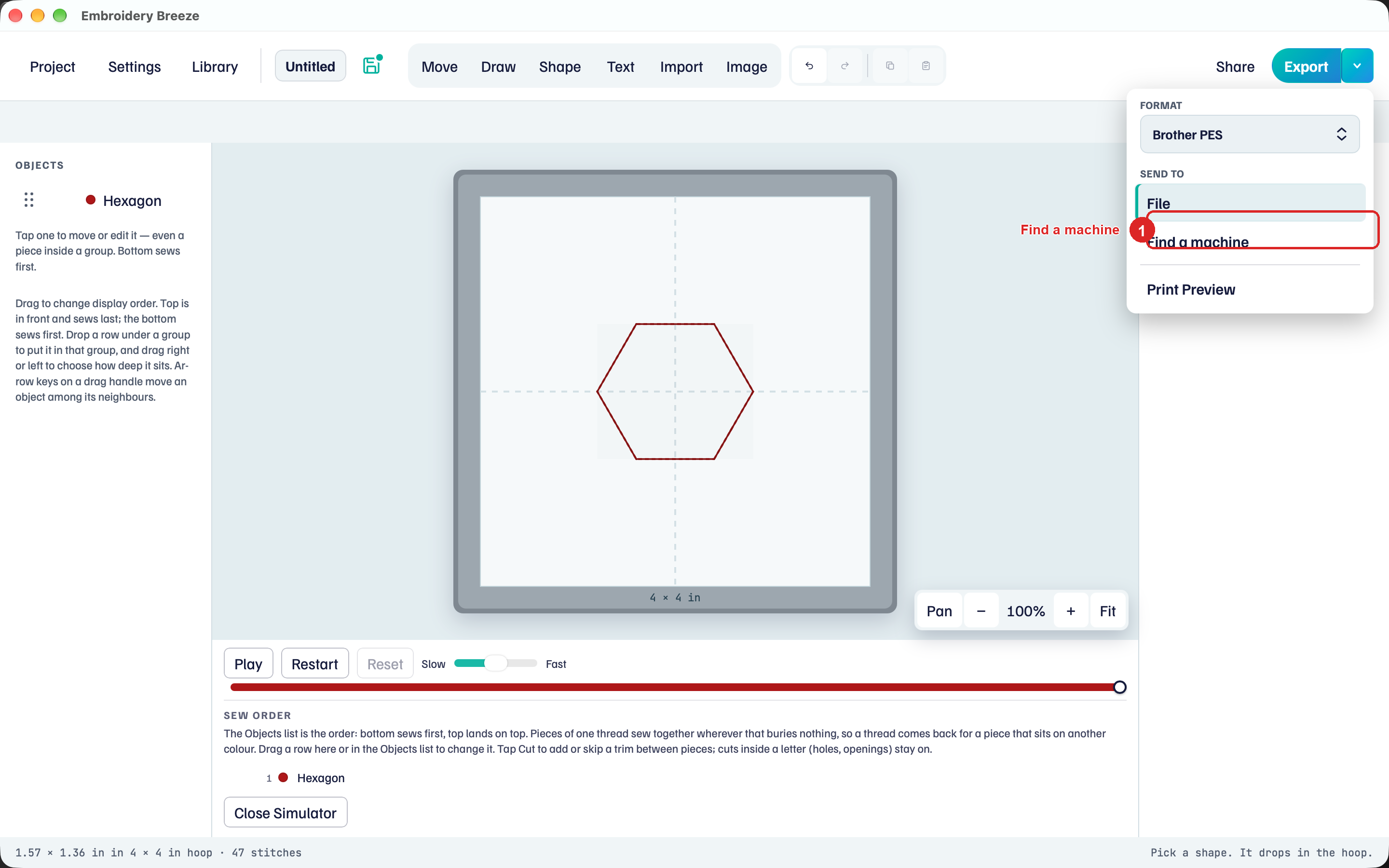
- Click the caret next to Export.
- Click Find a machine.
Scan and add
The Find a machine view is titled Send wirelessly. The hint: Both this device and the machine need to be on the same Wi-Fi.
- Click Scan. Looking… while it searches. Look again after the first scan.
- Or click Add by address. Type the address the machine shows on its wireless screen.
Done returns to the hoop. After a machine is saved, the Export menu shows Manage machines instead of Find a machine.
Send
Each saved machine is a Send to row: the name, then Checking…, Online, or Not found.
- Open the Export caret.
- Under Send to, click the machine row. Format switches to the one saved for that machine.
- Change Format if you need to. The machine keeps that choice.
- Click Send.
While a machine is the target, the filled button reads Send and sends there next time too. Click File under Send to to export to a file again.
When the design lands, the status says to open the wireless pocket on the machine. If the machine does not answer, check that it is on and on this Wi-Fi, then try again.
Manage machines lists your saved machines. Rename gives one a nickname. Remove takes it off the list. The hoop still needs stitches before you can send.
USB export is in Export to a USB stick.