
Files
Library
SummaryBrowse your .breeze projects, .breezefont fonts, and machine files as thumbnails, then open them or add them to the hoop.
Library shows your Embroidery Breeze files as thumbnails, like a photo library: .breeze projects, .breezefont fonts, and machine files when you ask for them. Click a thumbnail to see its details, then Open it or Import it into the project you have open.
Favorites, categories, Recents, the designs that come with the app, and deleting a file are in Organize your Library.
Find a file
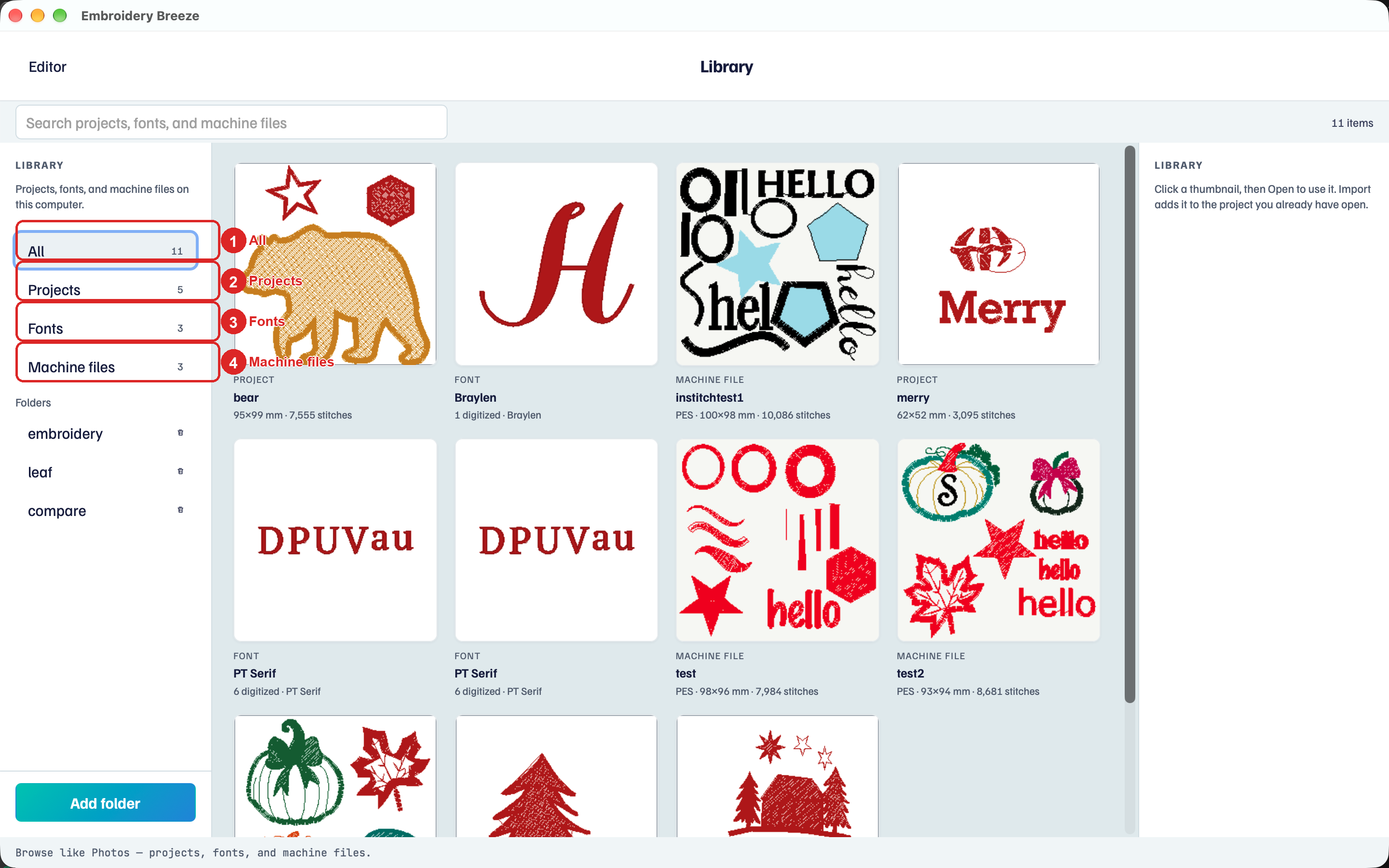
- Click Library in the top bar.
- In the left column, click All, Recents, Projects, or Fonts.
- Type in Search to narrow the grid by name.
- Click a folder under Folders to see only the files in it.
While Library reads a folder, names appear first and pictures fill in behind them. Editor, top left, returns to the hoop.
Where the files come from
Library reads these places, and no others:
- Embroidery Breeze in your Documents folder. A new design's first Save goes here. It is always first under Folders and can't be removed.
- Folders you add with Add folder, including the folders inside them.
- The fonts you have digitized or imported, and the designs and fonts that come with the app. These show up without adding a folder.
Saving a file somewhere else does not add that folder. The file still shows under Recents. To see the whole folder under All, add it.
- Click Add folder at the bottom of the left column and choose a folder.
- If you add files to a folder outside the app, click the round arrow beside that folder to read it again. Refresh reads every folder.
- To take a folder out, click the trash beside it, then Remove from library. The files stay on disk.
Machine files
Library shows only .breeze and .breezefont files until you ask for machine files.
- Tick Include machine files beside Search.
- Click Machine files in the left column, or stay on All.
PES, DST, JEF, EXP, VP3, XXX, and PEC files then show too. Library remembers the box on this computer.
A file's details
Click a thumbnail. The right panel shows, from the top:
- A larger picture, the name, and the size and stitch count.
- Location: where the file is saved.
- The buttons for this kind of file.
- Categories: see Organize your Library.
- Filter: Only this folder shows only the files beside this one. Click it again to show everything. Show file shows the file in Finder or File Explorer.
- Delete file, set apart at the bottom.
A .breeze project
- Open replaces the project you have open. Unsaved changes get the same prompt as Project → New. Library stays on screen until the project has loaded.
- Import adds its objects to this hoop and keeps what is there: Import SVG and other Breeze files.
- Share posts the file to your profile: Share.
A machine file
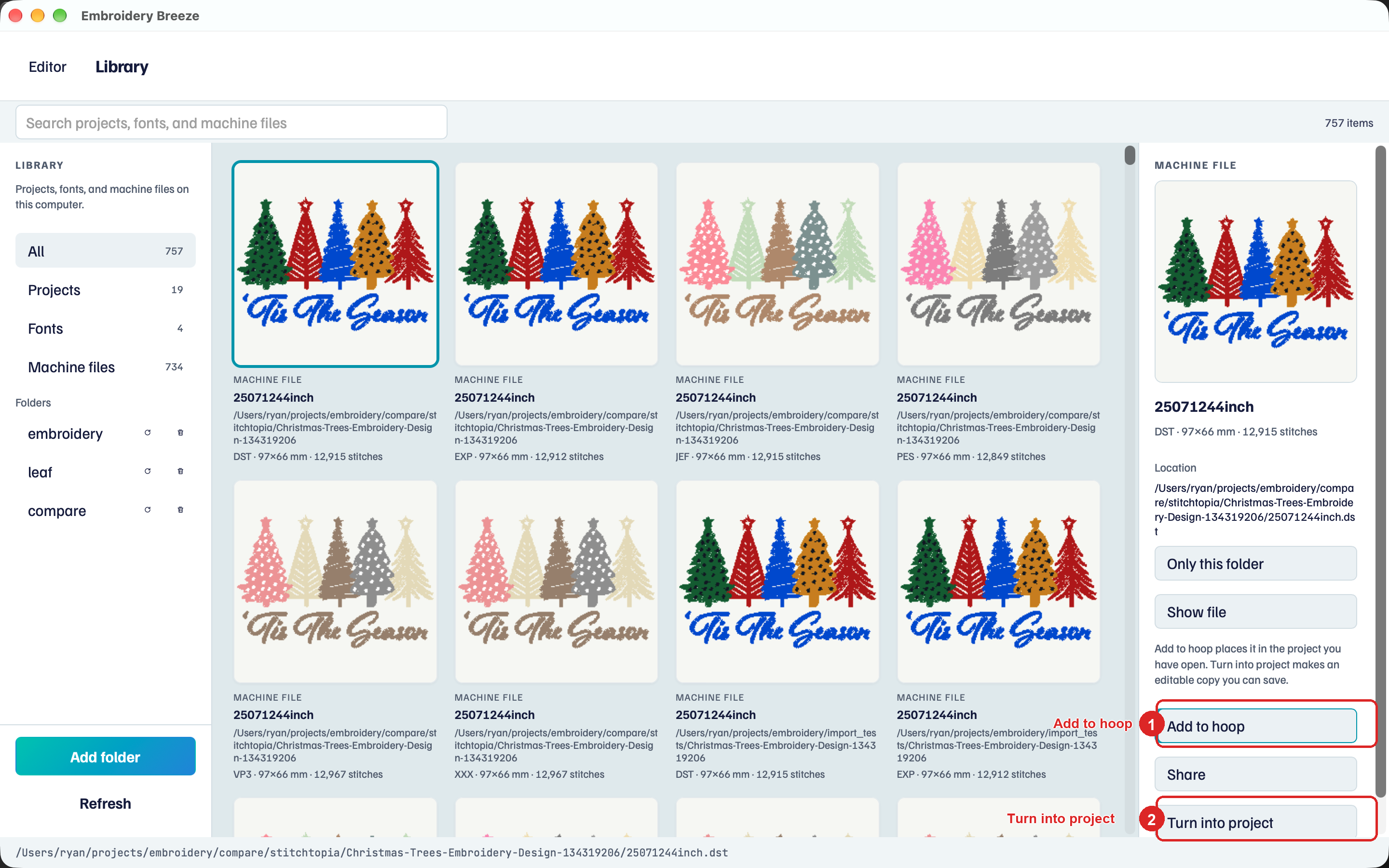
- Add to hoop places the stitches in the project you have open: Import a bought design.
- Share posts the file to your profile.
- Convert format saves a copy in another machine format, such as DST or PES. Like Save, it needs a license.
A .breezefont font
- Open opens the font in the Font Digitizer so you can work on its letters: Digitize a font.
- Import adds the font to this project. Type with it from the font picker.
- Share posts the font to your profile.
Open Library from a menu
Project → From Library, and Open a design on the Welcome screen or in Help, open Library ready to Open. Import → From Library opens it ready to Import. Select a thumbnail, then click the button in the right panel.
Files in iCloud Drive or OneDrive
Files that iCloud Drive, OneDrive, Dropbox, or Google Drive keep online show a small cloud on the card. It is outlined while the file is only online and filled once the file is on this computer. A file that is only online may say Not downloaded yet.
When you open or import one, Downloading from the cloud shows while it comes down. Cancel stops it. If the download fails, click Try again.
On iPad and Android
- There is no Add folder. Tap From Files to copy a file into the app's own folder, which Library always shows. On iPad, that folder is Embroidery Breeze in the Files app.
- If you put files in the app's folder from another app, tap Refresh.
- Show file is not there.
- On a phone, tapping a thumbnail opens it straight away. Tap Properties under it to see its details first.