
Design
Lettering
SummaryType a word on the hoop with a digitized font or a bought alphabet, then size, stretch, bend, or move the letters.
Text places live lettering on this hoop. Computer fonts are not sewn as-is. Pick a digitized font (outline, breaks, and inclinations) or a bought alphabet (frozen letter stitches). The app comes with five digitized fonts you can type with right away: Your fonts.
Text sits in the middle of the top bar, between Shape and Import.
Add a word
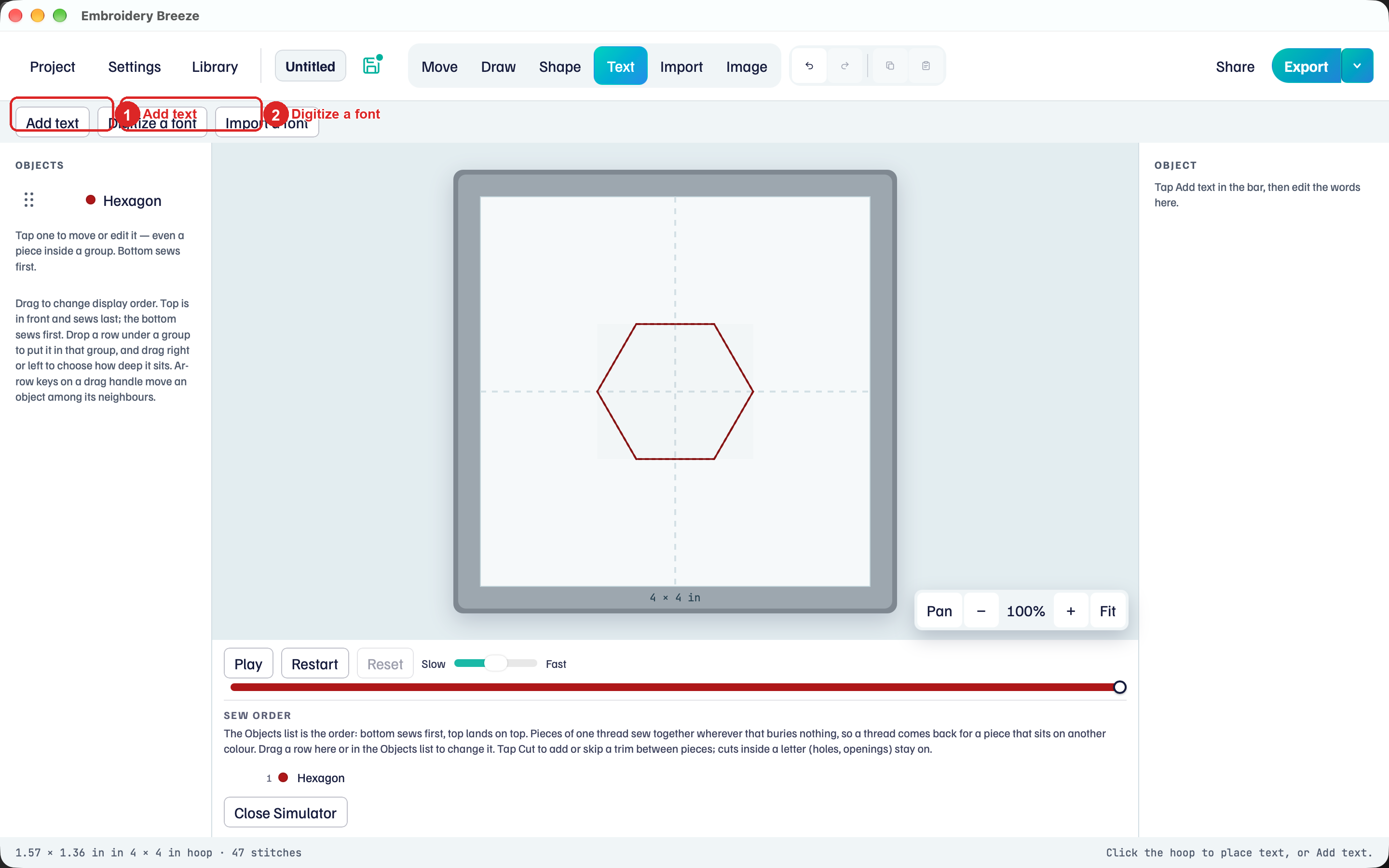
- Click Text.
- Click Add text. A text object lands on the hoop in the last font you used, or the first of your fonts.
- Type in Words on the right. Return starts a new line.
The right panel says: Type with a digitized font or a bought alphabet. Only letters you’ve digitized sew as satin; the rest stay an outline until you digitize them.
Words takes Cut, Copy, and Paste from the keyboard or a right-click.
If the text’s font is not on this computer, the notice is: Pick a digitized font or a bought alphabet. Computer fonts are not sewn as-is. Choose a font in the picker, or click Digitize a font. Import a font on the tool row adds a font you already have.
Font, size, and spacing
The Font picker lists Your fonts (badge Digitized) and Bought alphabets (badge Bought). The built-in fonts are under Your fonts. Each row draws its sample with that font’s own letters: your first word, or Aa before you type. Under the saved name, a digitized font shows the computer font it came from. Computer fonts are not in the list.
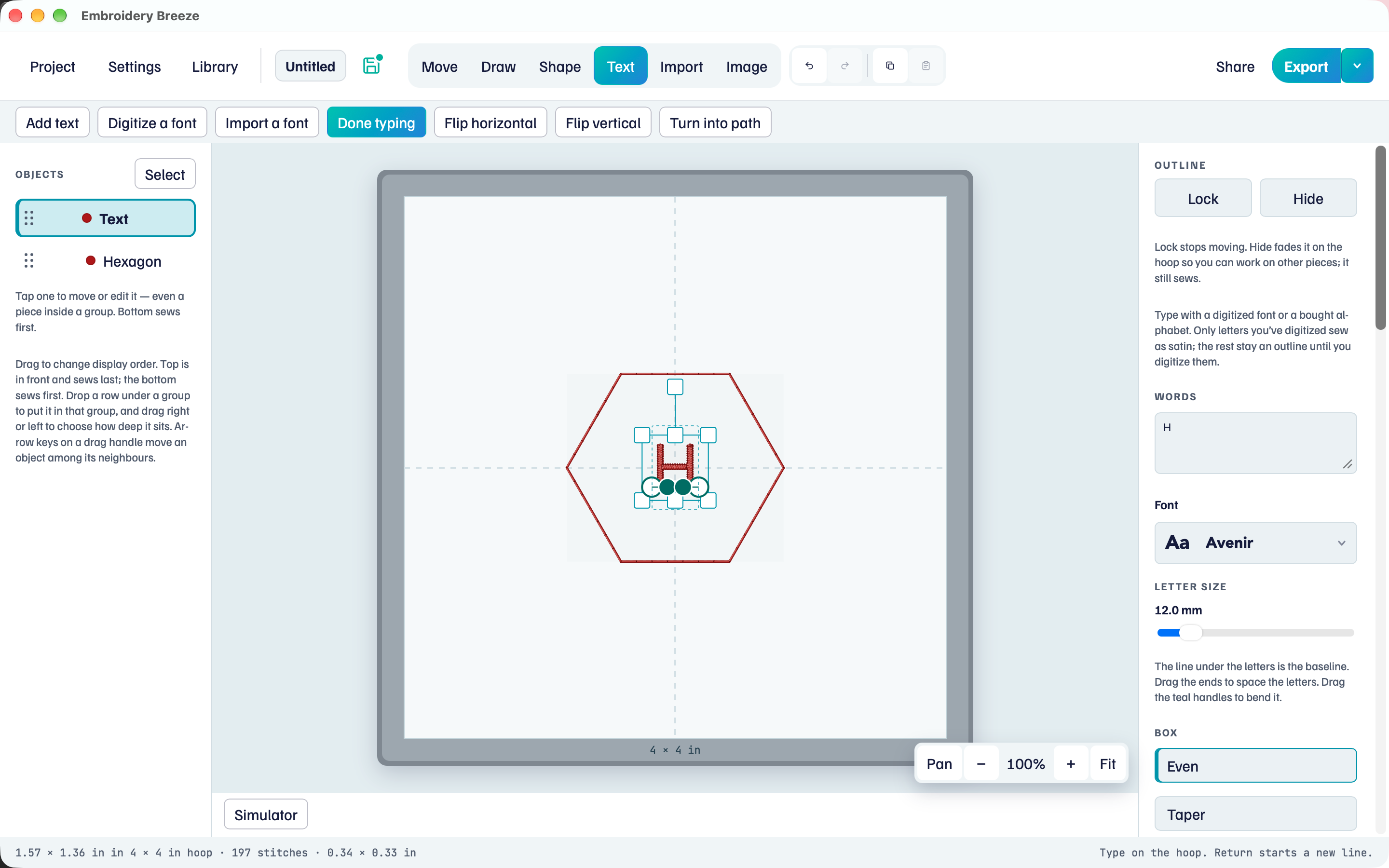
- Click the Font picker under Words.
- Type in Find a digitized font to narrow the list, then choose a font.
- Drag Letter size. The value is in millimetres.
Import a font and Digitize a font sit at the bottom of the list.
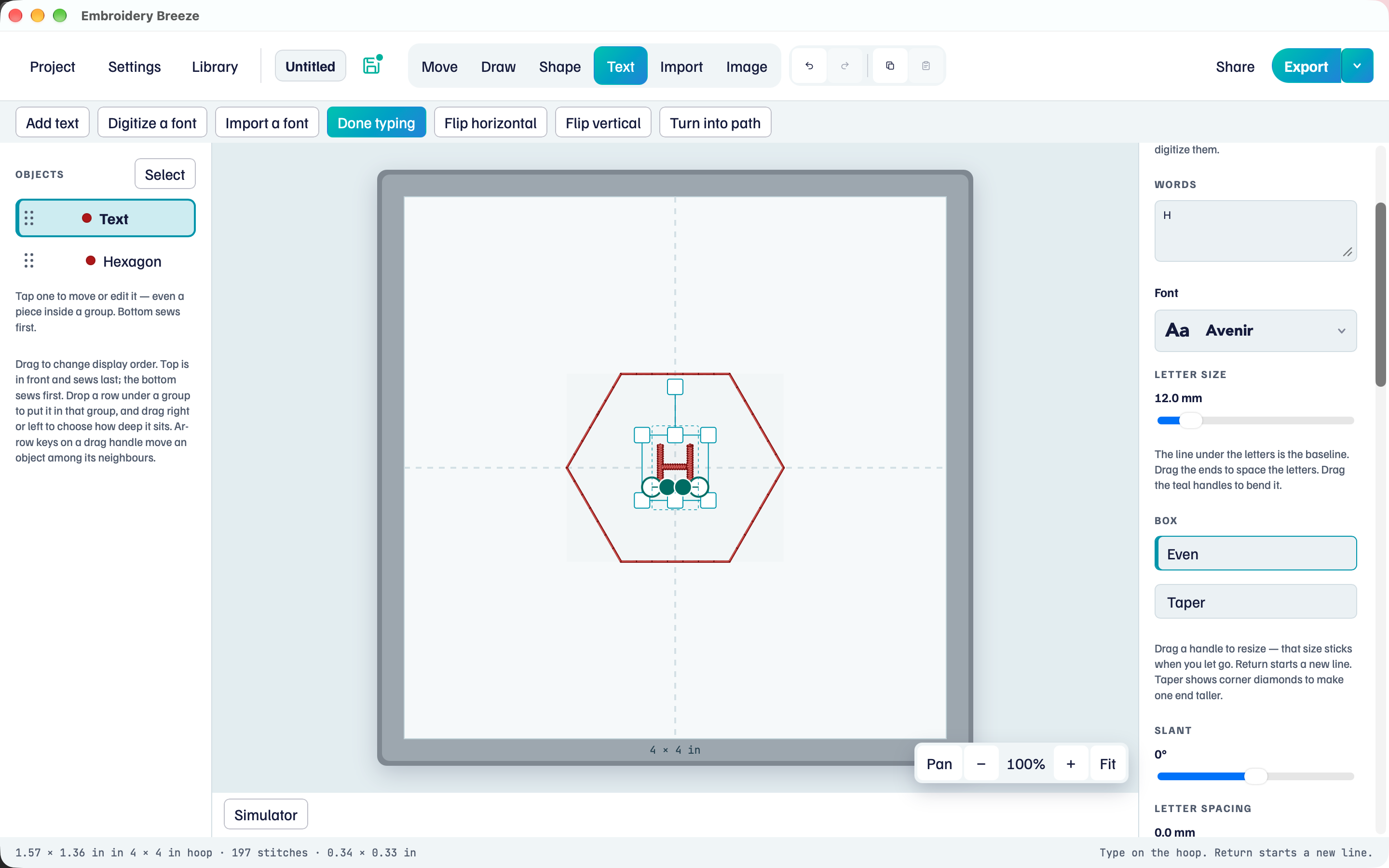
Letter spacing opens or tightens the gaps. Line height opens the space between lines. Slant leans the letters. Bought alphabets have no Slant.
Letter width stretches the letters wider or narrower at the same height, from 25% to 300%. The side handles of the text box do the same. The top and bottom handles change the letter size and keep the width, and the corners resize. As drawn appears once you change the width and puts back the font's own proportions. Letter width is not offered while the words are in an Envelope. Bought alphabets keep their proportions, so they have no Letter width.
The line under the letters is the baseline. Drag the ends to space the letters. Drag the teal handles to bend it.
Once the baseline is tilted or bent, Follow a path shows Start, Center, End and Along the path. They say where the words sit on it when the baseline is longer or shorter than the words. New words keep the Letter spacing you have: they run past the ends rather than squeeze together. Drag an end to fit them again.
A bought alphabet was digitized at a reference height. Scaling far from that size can sew too dense or too sparse. The notice names that height.
Envelope: bend the words into a shape
Box is Even by default. Envelope bends the words into an outline. The letters grow, shrink and lean to fill it. Box is for digitized fonts. It is not offered for a bought alphabet, or while the words follow another object's path.
- Under Box, click Envelope. An outline appears with a diamond at each corner of the text.
- Drag a diamond or a node to reshape it.
- Tap the line between two nodes to show its teal handles. Drag them to bend that side.
If you had bent the baseline, Envelope straightens it first. The envelope does the bending now.
Under Envelope nodes, Add node puts a node where you tapped the line. To curve and To line change that side. Delete node removes a node; the corner diamonds stay.
Fit in a shape, under Envelope, bends the words into any closed shape on the hoop: an oval, a star, or a shape you drew. Click it, then tap the shape. The words take the shape's place and size. The shape still sews, so delete it if it was only a guide. Fit in a shape stays grey until there is a closed shape on the hoop.
In an envelope, new words squeeze into the same outline instead of growing the box. Even puts the words back in a plain box. Return in Words still starts a new line.
Move single letters
Move letters on the tool row lets you nudge one letter without touching the rest, such as lowering a letter or tucking two closer together.
- Select the text. Click Move letters. Each letter gets a box.
- Drag a letter to move it.
- Or click a letter, then nudge it with the arrow keys: 0.1 mm a press, 1 mm with Shift.
- Click Done moving, or press Esc.
Delete puts the picked letter back. Reset positions puts every letter back. A letter can move up to one letter height each way. The moves scale with the text and save with the project. They work on bought alphabets too.
Move letters is not offered while the words follow another object's path.
On a phone, Move letters is not on the tool row.
Stitches on digitized letters
Digitized letters use the same Border and Fill as a shape. Under Fill, Appliqué sews the letters as fabric pieces: Appliqué. Letter connections sits under Underlay.
- Auto uses the font.
- Always joins when the travel stays in the ink. It still cuts through a hole.
- Never cuts between letters.
Turn into path on the tool row changes this word only, into editable paths. Changing how every future letter is drawn is Digitize a font.
Bought alphabets sew the frozen letter stitches. Pick their thread under Thread, then scale and place them. Outline and fill stay with the original digitizing, so a bought alphabet cannot be appliqué. Change mappings if a letter landed on the wrong key: Bought letter alphabets.
Missing letters
A digitized font: “A” is not digitized yet. Digitize it opens that letter in the font digitizer.
A bought alphabet: “A” is not in this alphabet. That letter is skipped. Change mappings if the letter is in the pack on the wrong key.
Sit a word on a curve in Text on a path.