
Design
Select, move, and lock
SummaryClick an object to select it, then move, rotate, and resize. Lock and Hide do not skip stitches.
Click an object on the hoop. A box appears around it. Drag anywhere inside that box to move, even where another object is drawn on top. The handles on the box rotate and resize.
A click on the hoop selects the single piece under the pointer, even when it sits in a group. To move a whole group, click its row in Objects: Groups.
Sew order (which object sews first) is a separate job: drag rows in The Objects list.
Rotate and resize
The small square above the box rotates. A corner resizes.
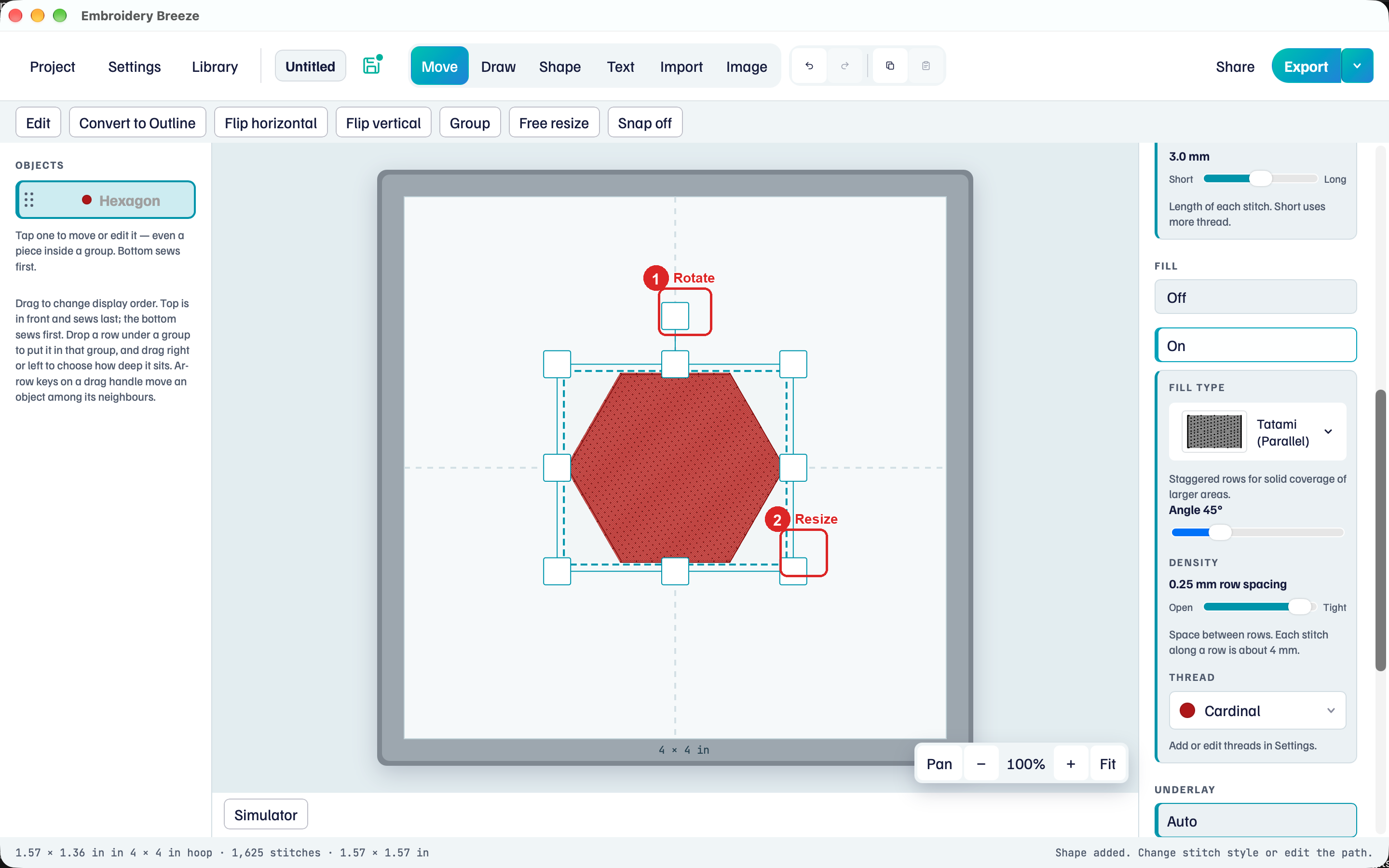
- Drag the handle above the box to rotate.
- Drag a corner to resize.
Flip horizontal and Flip vertical on the tool row mirror the object.
Free resize lets the box change shape, so a circle can become an ellipse. Click it to switch to Proportions locked, which keeps width and height in step. A placed machine file keeps its proportions. Text has its own handles: the side handles stretch the letters, and a bought alphabet keeps its proportions. See Lettering.
To move single letters of a text object, use Move letters: Lettering.
A shape can shrink to about 0.4 mm. Lines stay longer so they still sew.
Snap on the same row pulls a drag toward neighbors, the hoop, and the grid. Details: Snap and the grid.
If you were drawing or adding a shape, click Move (or Done) first. Otherwise a drag on the hoop adds nodes instead of moving.
Move only side to side or up and down
Side to side and Up and down sit next to Snap on the tool row. They keep a drag on one line, so a piece keeps its height or stays centered while you move it.
- Select an object.
- Click Side to side. A drag now moves it only left or right. Up and down moves it only up or down.
- Drag. Snap still pulls along that line, never off it.
- Click the same button again to drag freely.
Clicking the other button switches direction. The status line says which way drags go, such as Dragging moves only side to side.
The lock stays on until you click it off. It also holds a set of objects, a group, nodes in Edit, and a picture you are tracing.
Select several objects
When the hoop has two or more objects, Select appears above the list.
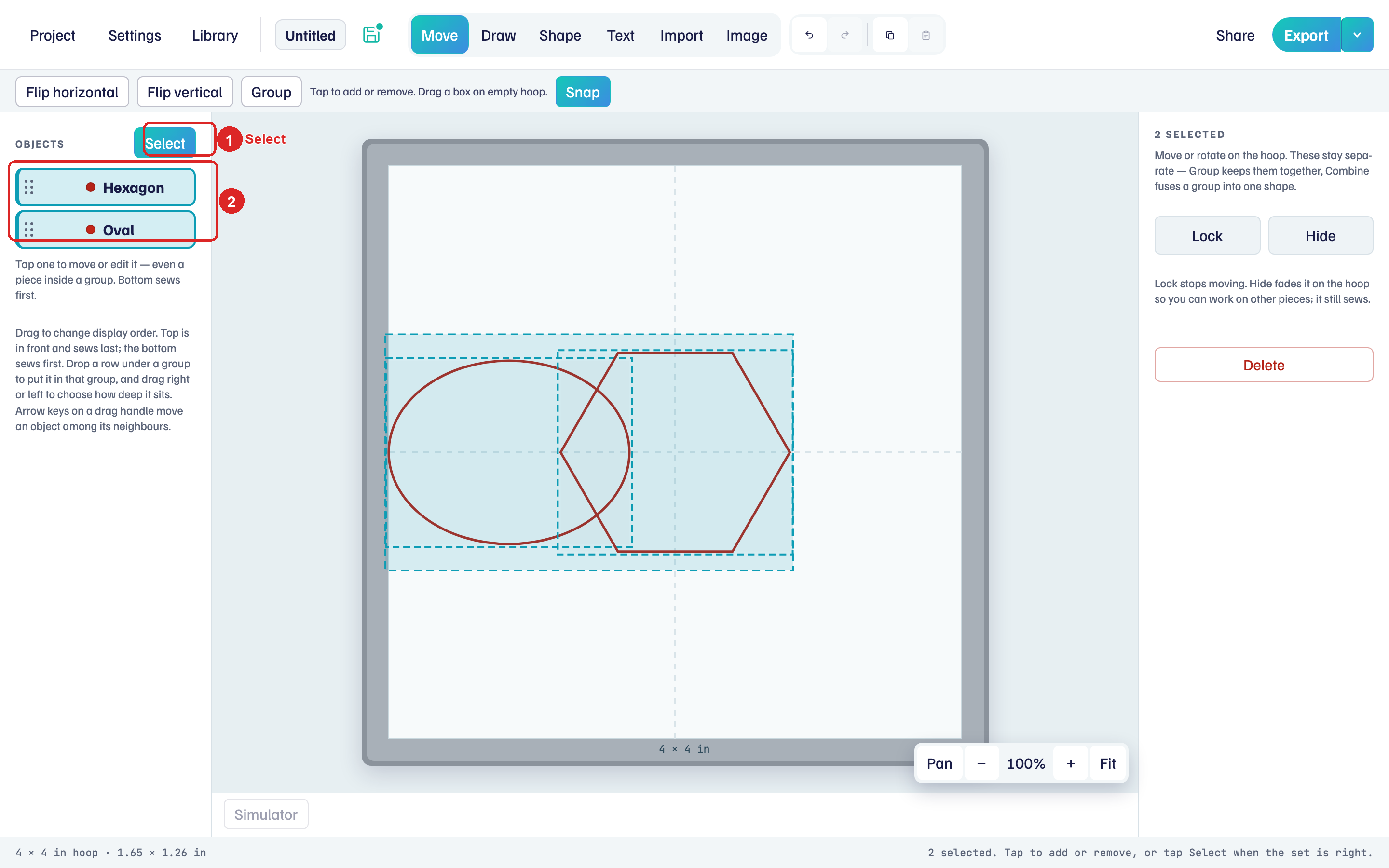
- Click Select. It stays on while you build the set.
- Click each object on the hoop or in Objects. Or drag a box on empty hoop.
- Move or rotate: they travel together for this selection.
The right panel says how many are selected. Group on the tool row keeps that set after you click away. How to group, ungroup, and combine is in Groups.
Click Select again when the set is right. The objects stay selected and move together. Click empty hoop to go back to one object.
You can also click a row in Objects to select that object alone.
Copy, paste, and delete
Copy (⌘C) and Paste (⌘V) in the top bar duplicate the selected object or group. The copy lands slightly offset and is selected. Delete at the bottom of the right panel, or the Delete key, removes the selection.
Lock and Hide
Select an object. Lock and Hide sit at the top of the right panel.
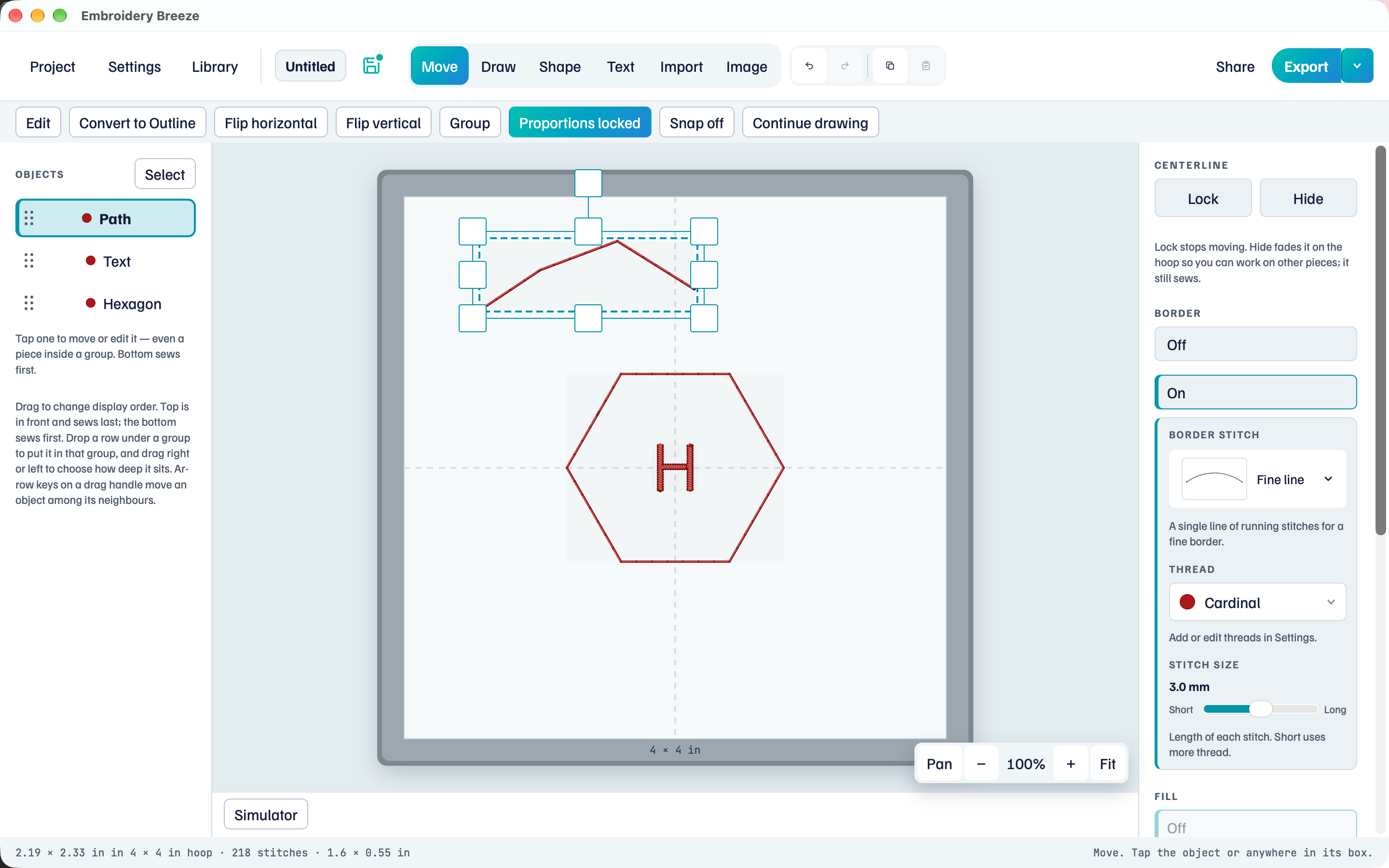
- Lock stops moving, rotating, and resizing. It still sews.
- Hide fades it on the hoop so you can work on others. It still sews.
A Hidden tag appears on the row. Use the same buttons to unlock or show it again.