
Design
Groups
SummaryKeep objects together, move the whole group or one piece, or Combine them into a single path.
A Group keeps objects together so they move and rotate as one. You can still pick one piece and move it on its own without breaking the group.
Making a group does not reorder Objects. Members keep their sew order. Drag the group row if you want those members to move together in the list. See The Objects list and Select, move, and lock.
Make a group
Select two or more objects, then click Group.
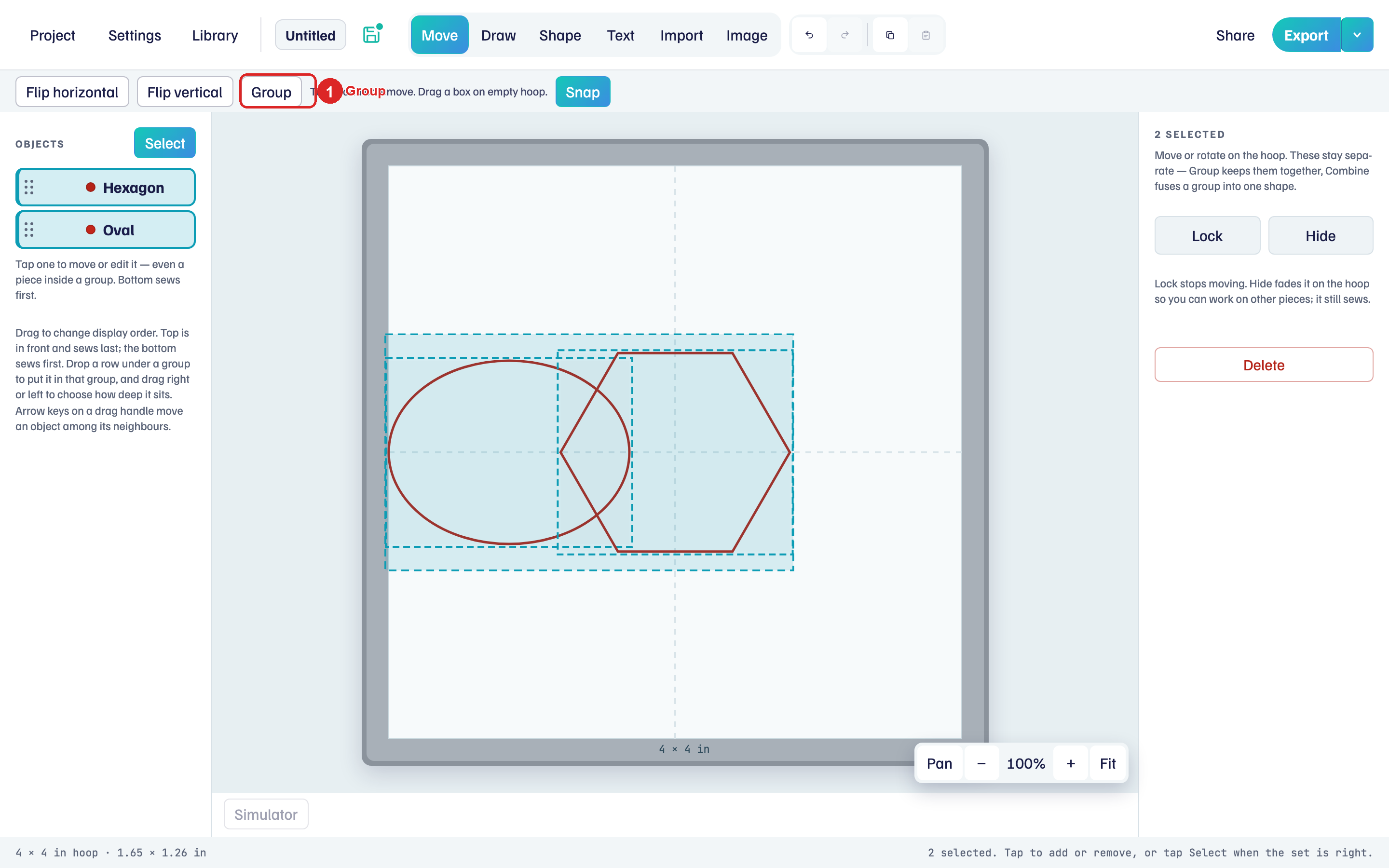
- Click Select above the Objects list (it appears when the hoop has two or more objects).
- Click each object, or drag a box on empty hoop.
- Click Group.
You can also select one object, click Group, tap the others, then Done. Add to group on a selected group does the same.
Move the whole group
A group is selected from its row in Objects. Right after you click Group, the new group is already selected.
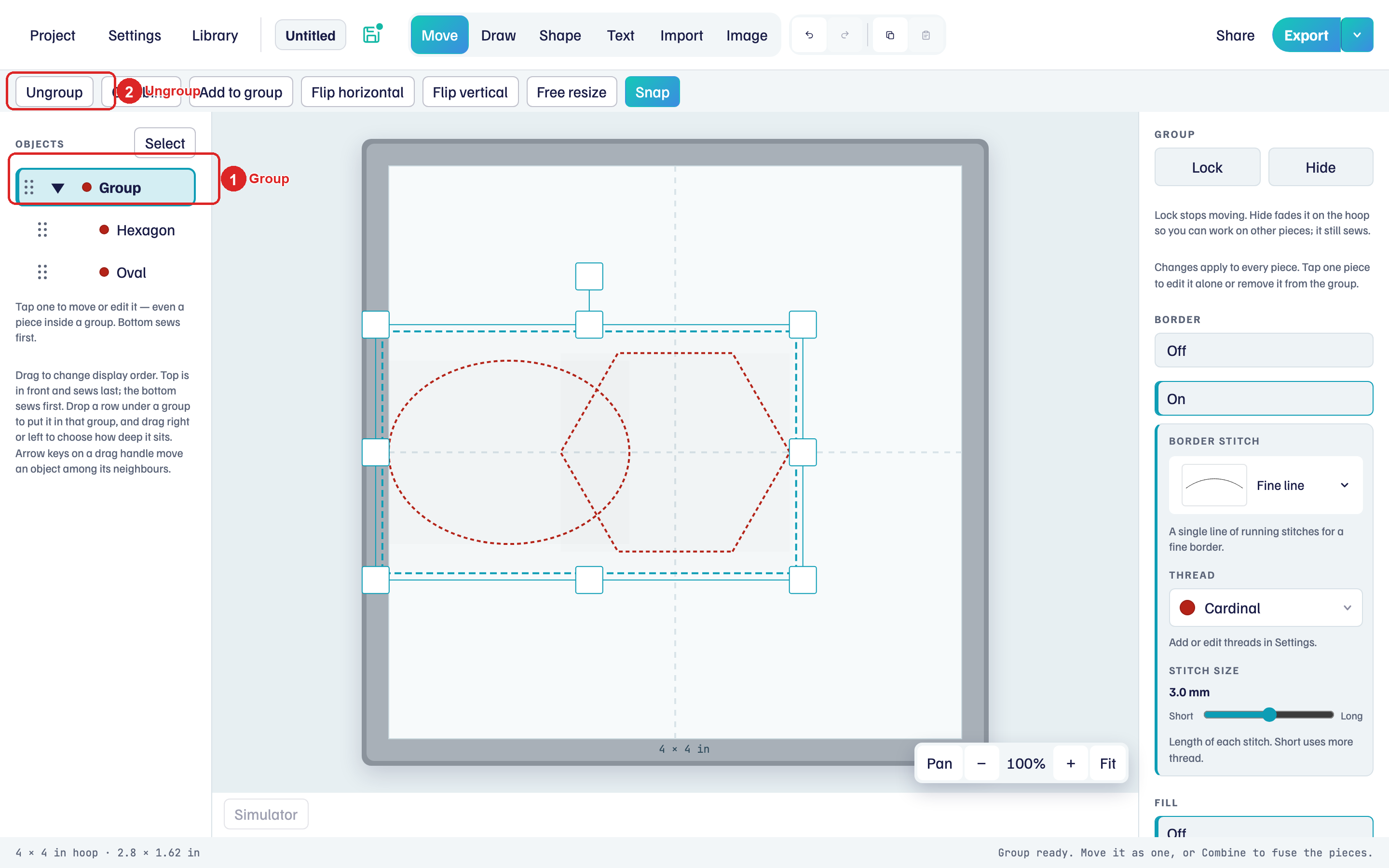
- Click the Group row in Objects. One box surrounds all the members on the hoop.
- Drag any member, or anywhere inside the box, to move the whole group.
- Use the handles on the box to rotate or resize it.
While the group is selected, a click on one of its pieces keeps the whole group selected. Changes in the right panel apply to every piece.
Move or edit one piece
A click on the hoop selects the single piece under the pointer, even inside a group.
- If the group is selected, click empty hoop first.
- Click the piece. Objects opens its group and shows its row.
- Drag the piece to move it alone. It stays in the group.
The right panel shows that piece's stitches and thread, so you can recolor one leaf without breaking the group. Clicking the piece's row in Objects selects it too.
Remove from group on a selected piece takes it out and leaves the rest grouped.
Groups in the Objects list
The list shows a Group row with the members under it. Drag that row to move all members together in sew order. Drop a row under the group (or between members) to put an object in the group. Drag a member out to leave it. A group left with one object dissolves.
Ungroup and Combine
Ungroup restores separate objects.
Combine fuses the members into one editable path. Ungroup is gone after that. Undo if that was not what you wanted.
- Click the group's row in Objects.
- Click Combine.
Importing a .breeze file or an SVG with several shapes lands as a group named after the file. Click a piece to move it on its own, or Ungroup to separate them all.