
Files
Import SVG and other Breeze files
SummaryAdd editable paths from SVG, or objects from another .breeze file, without replacing this hoop.
Import adds to this hoop. Project → Open still replaces the current project. Use Import when you want to keep what is already here.
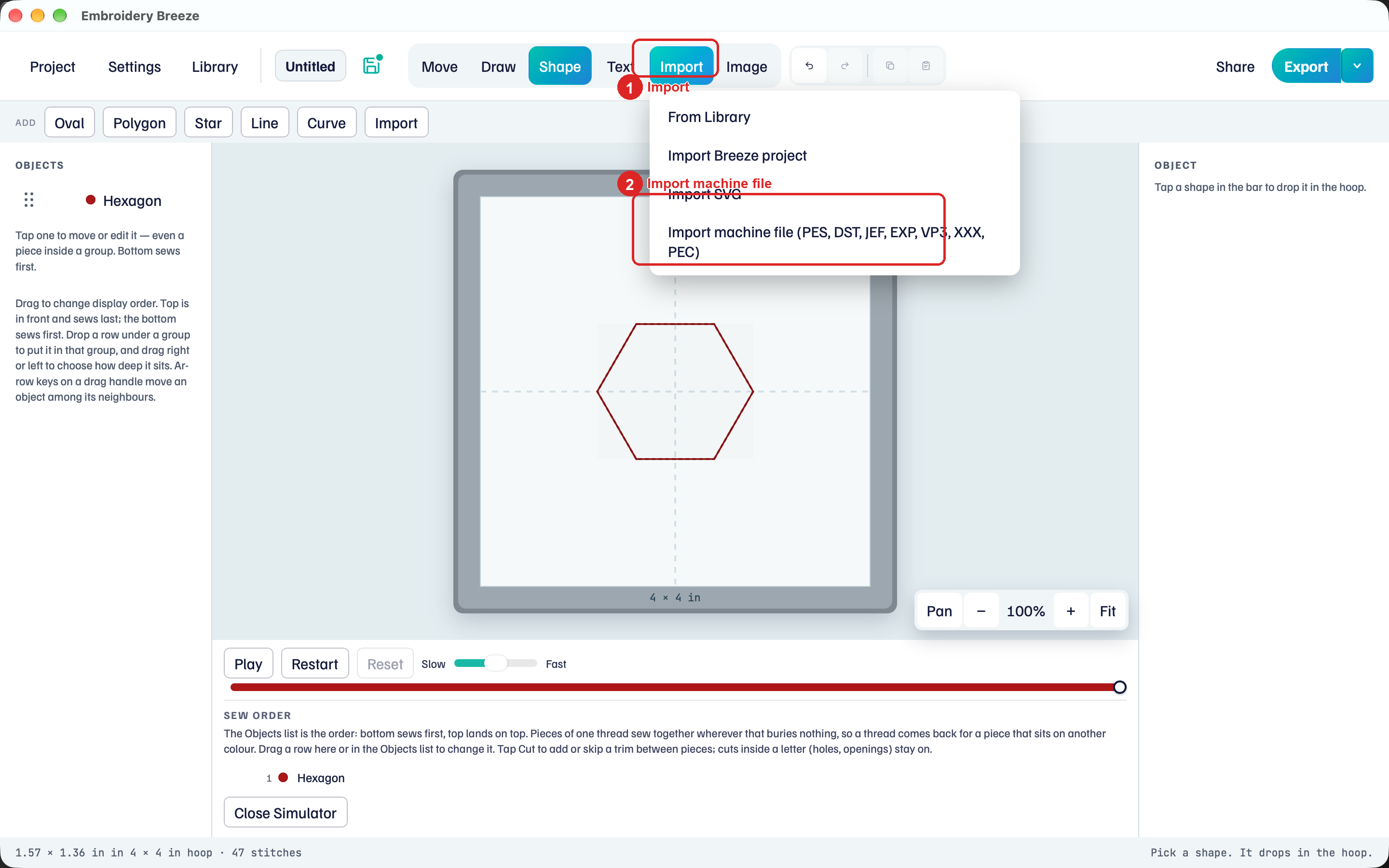
Import sits in the top bar, after Text.
Imported pieces land at the top of Objects, so they sew after what is already on the hoop. Drag rows in Objects to change that: The Objects list. If something is larger than the hoop, the hoop grows to fit.
Import SVG
Import SVG turns drawing paths into objects you can edit.
- Click Import, then Import SVG.
- Choose an
.svgfile. - Paths, polygons, and basic shapes land on this hoop. Nodes stay editable.
Several shapes arrive as a group named after the file, and the group is selected, so dragging moves all of it. Click one shape on the hoop to select just that shape, then drag it to move it alone. Click the group's row in Objects to select the whole group again. Ungroup removes the group and keeps the shapes: Groups.
Select a path and click Edit to move nodes. Border and Fill are in the right panel.
SVG text, clips, filters, and embedded pictures are skipped. PNG, JPEG, and WebP stay tracing pictures under Image: Trace a picture.
Import a Breeze project
Import Breeze project adds objects (and photos) from another .breeze file to this hoop.
- Click Import, then Import Breeze project.
- Choose a
.breezefile. - Those objects join this hoop. Existing objects and this project's name stay.
Digitized fonts saved in that project come with it. Two or more top-level objects arrive as a group named after that project, selected and ready to move as one, like an SVG group.
In Library, Import on a selected .breeze file does the same add. Open there still replaces this project: Library.