
Design
Digitize a font
SummaryTurn a computer font into a reusable embroidery font, then type with it on the hoop.
The font digitizer is where you build a reusable embroidery font from a font on this device. Stitching happens later, when you type on the hoop.
You can open it from:
- Text → Digitize a font
- Project → Font Digitizer
- Digitize a font at the bottom of the font picker
- The Digitize a font card in Help or the Welcome: click a font tile to start digitizing that font: Welcome and Help
For each letter: Outline (the computer face is the starting outline), Breaks to split the outline into sections, then Inclinations across each section for stitch direction.
Open the font digitizer
The Fonts page opens first. It has two lists: Your digitized fonts, and Digitize a computer font with the fonts on this device.
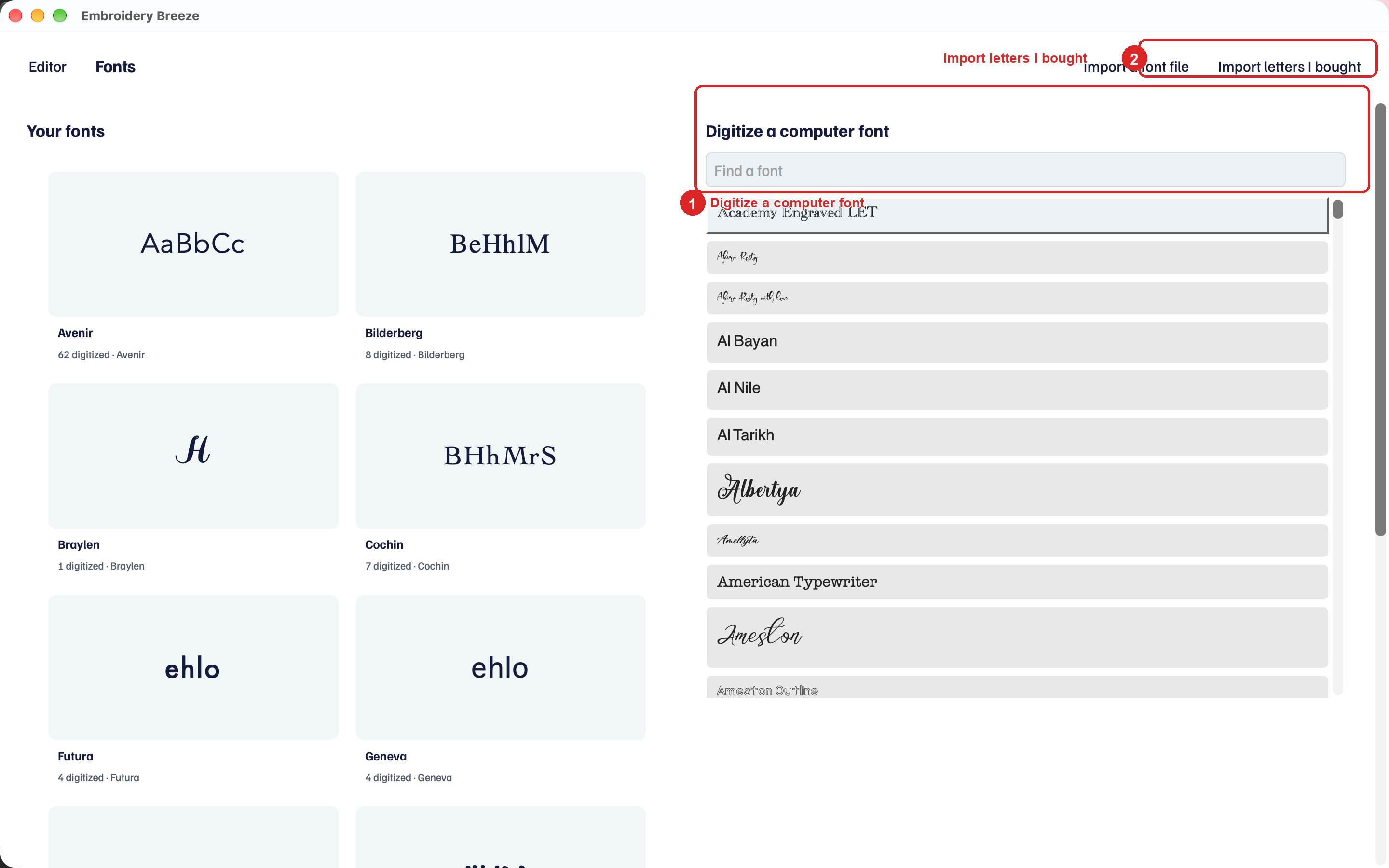
- Click Text, then Digitize a font.
- Under Digitize a computer font, type in Find a font, then click a simple face.
- Type the embroidery font's name in the name box at the top left. It starts as the computer font's name.
To keep working on a font you saved, click its card under Your digitized fonts. It opens on its first digitized letter. Searching, copying, and deleting fonts are in Your fonts.
In the top bar, Editor returns to the hoop and Fonts goes back to the Fonts page. Save keeps the font in this .breeze file and on this computer. Save as makes a separate copy and keeps you working in it. Export font file writes a .breezefont file other projects can import. Share posts the font to your profile.
Outline, Breaks, Inclinations
The top rail is Outline, Breaks, and Inclinations. Letters are in the Letters list on the left, under A–Z, a–z, 0–9, and Punctuation. Digitized letters are marked.
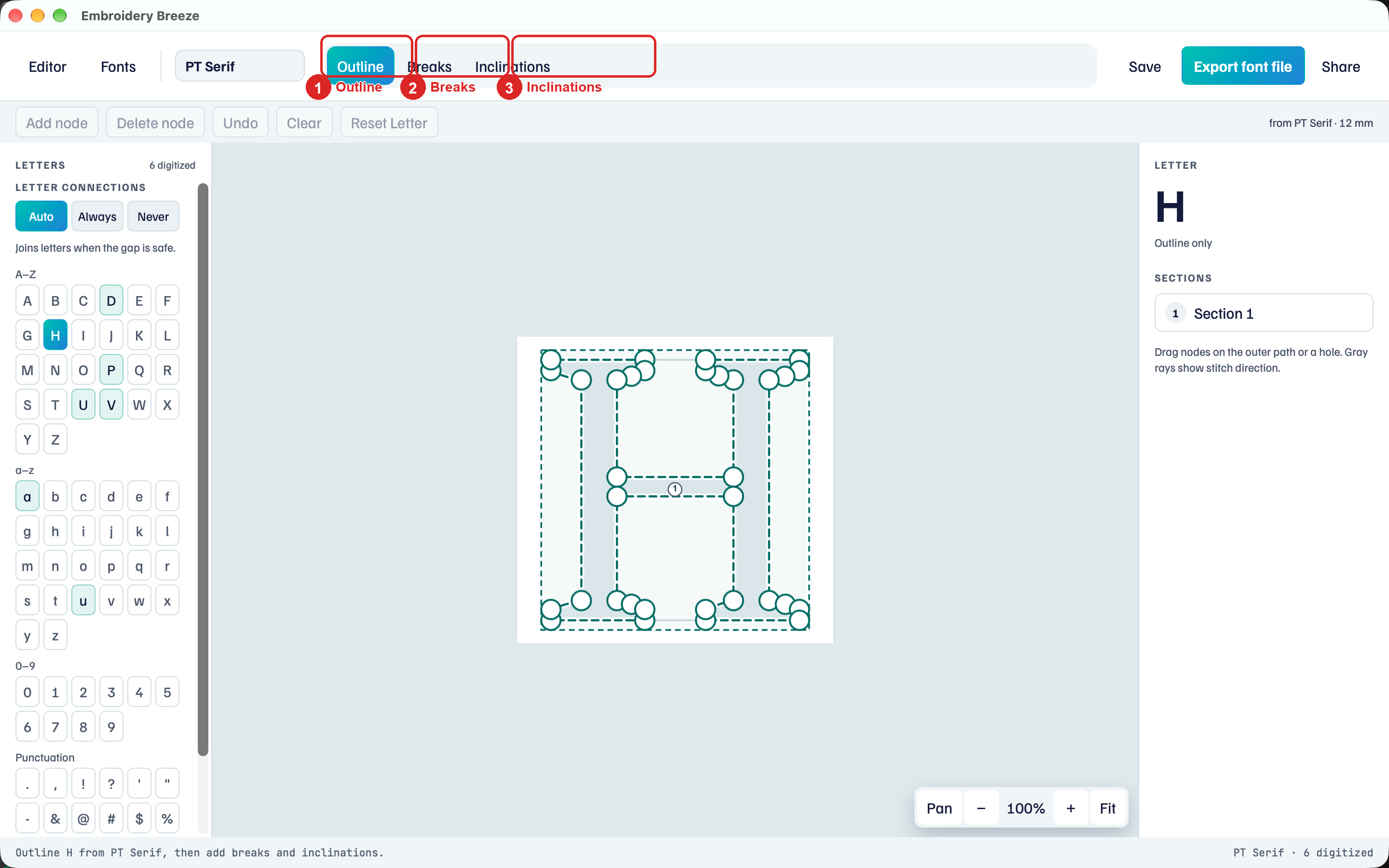
- Select H (or another letter).
- Stay on Outline. The computer shape is already there. Drag nodes on the outer path or a hole.
- Gray rays show stitch direction in each section.
The right panel says Letter, the character, and Sections. Not started means there is no outline yet. Outline only means the outline is there and you still need inclinations. Digitized means the letter is ready to type.
Split with Breaks
Breaks (red walls) split the letter into pieces, such as the stems and the bar of an H.
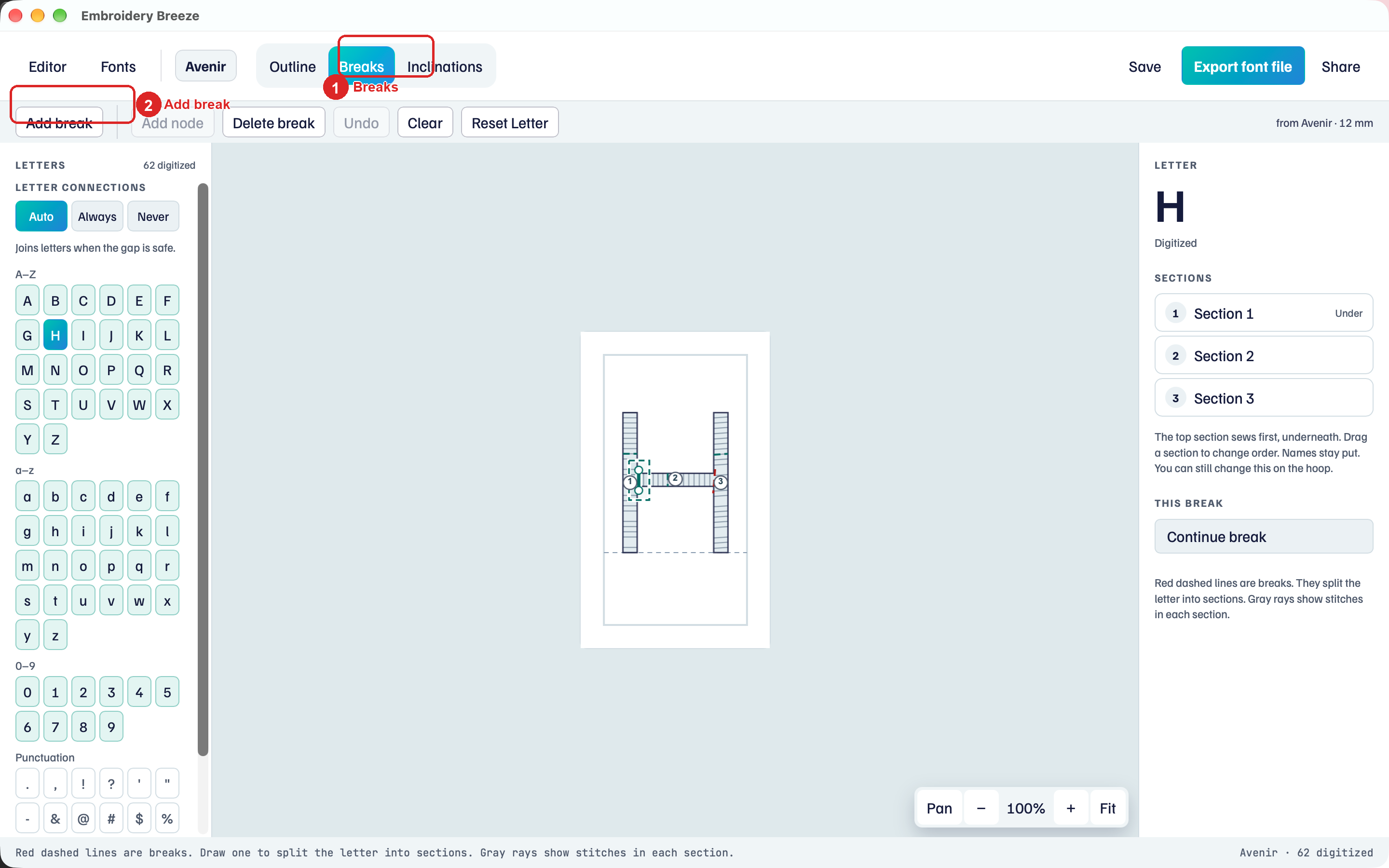
- Click Breaks.
- Click Add break.
- Tap two points on the outline to place a wall.
- Click Done when the wall is right.
Cancel drops the wall you are drawing. Click a wall to select it. Delete break removes it, and Continue break under This break adds nodes to it.
Inclinations
Inclinations (teal) set stitch direction in a section.
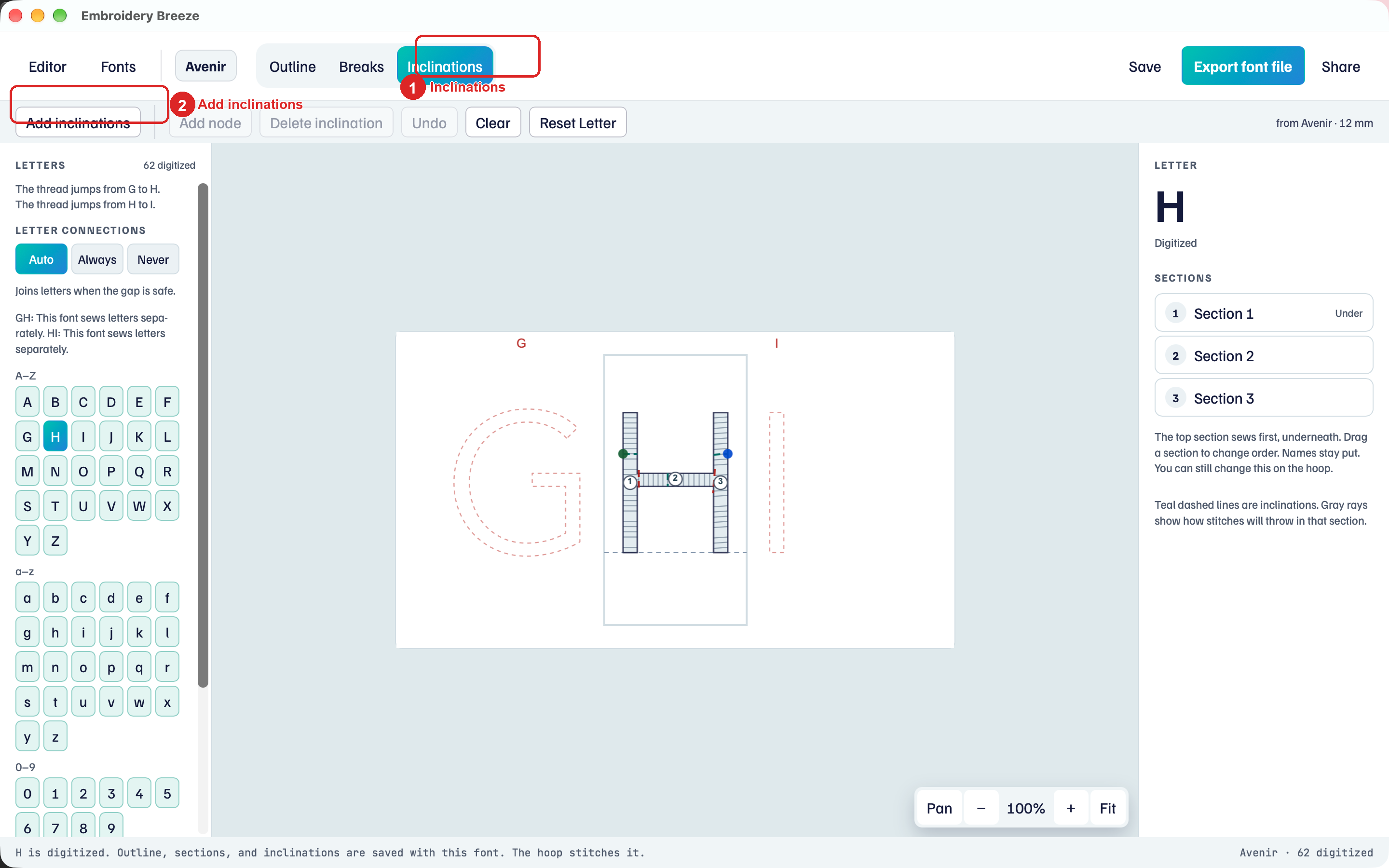
- Click Inclinations.
- Click Add inclinations.
- Tap two points across a piece. Each pair is one inclination. Keep adding pairs.
- Click End inclinations when you are done.
Delete inclination removes the selected one. A letter is not digitized until it has a closed outline and at least one inclination.
Sections and sew order
Sections lists each piece in the order it sews. The top row sews first (underneath) and is marked Under. Drag a row to change sew order.
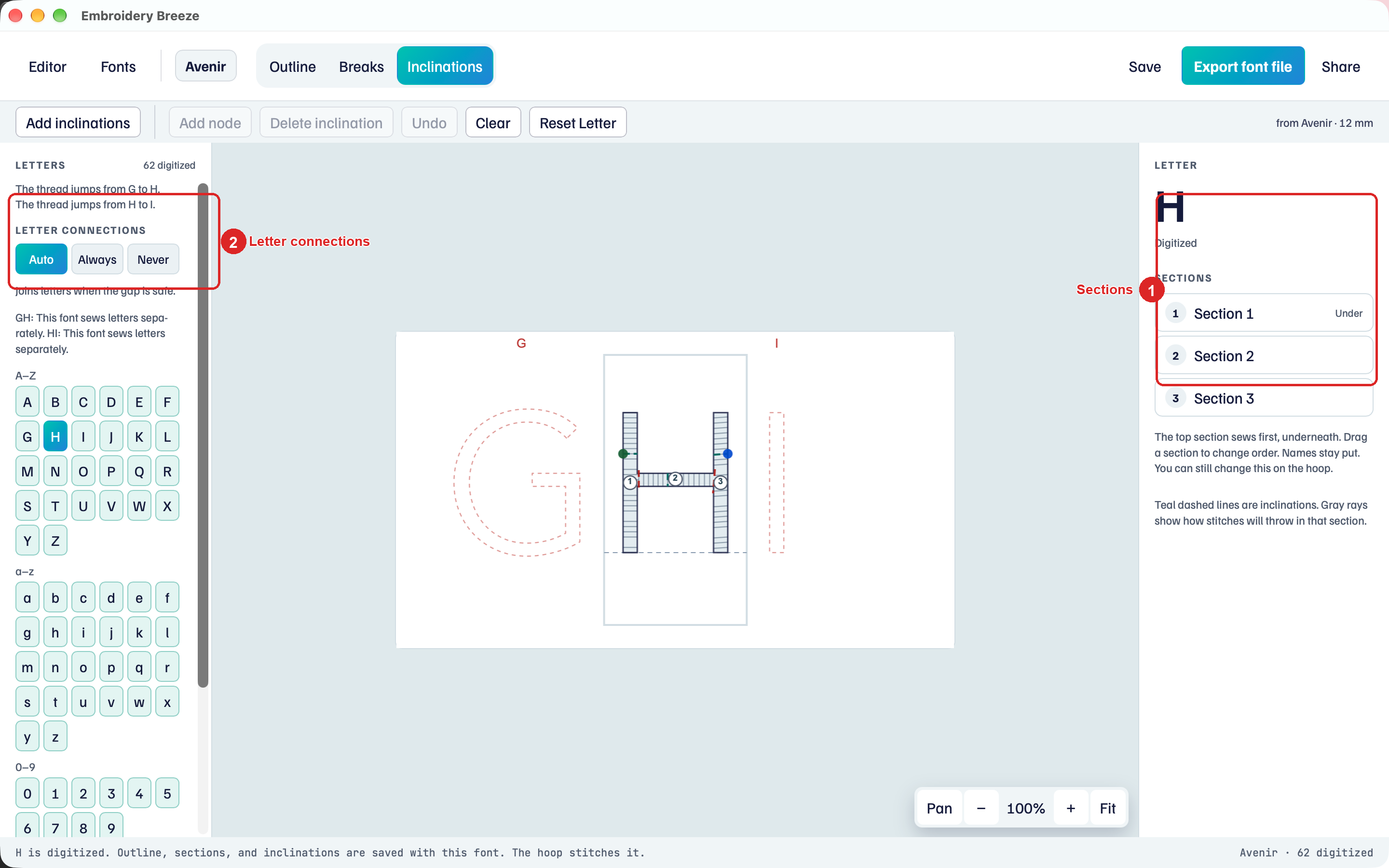
- Tap a row to select that section.
- Under This section, Under sews it earlier and Over sews it later. They show once the letter has two or more sections.
- On the Inclinations step, Reverse flips the sew direction of that section.
Undo steps back one change. Clear removes every inclination on this letter; tap it twice to confirm.
Reset Letter asks Reset this letter? Click Reset letter to drop its outline edits, breaks, and inclinations. The computer outline comes back, and the rest of the font stays.
Letter connections sets the whole font. It sits at the top of the Letters list on the left: Auto, Always, or Never. Auto joins letters when the gap is safe. Always keeps the needle down unless it would sew through a hole. Never cuts the thread between letters.
On a phone, Letter connections is in the Edit sheet.
Type with it
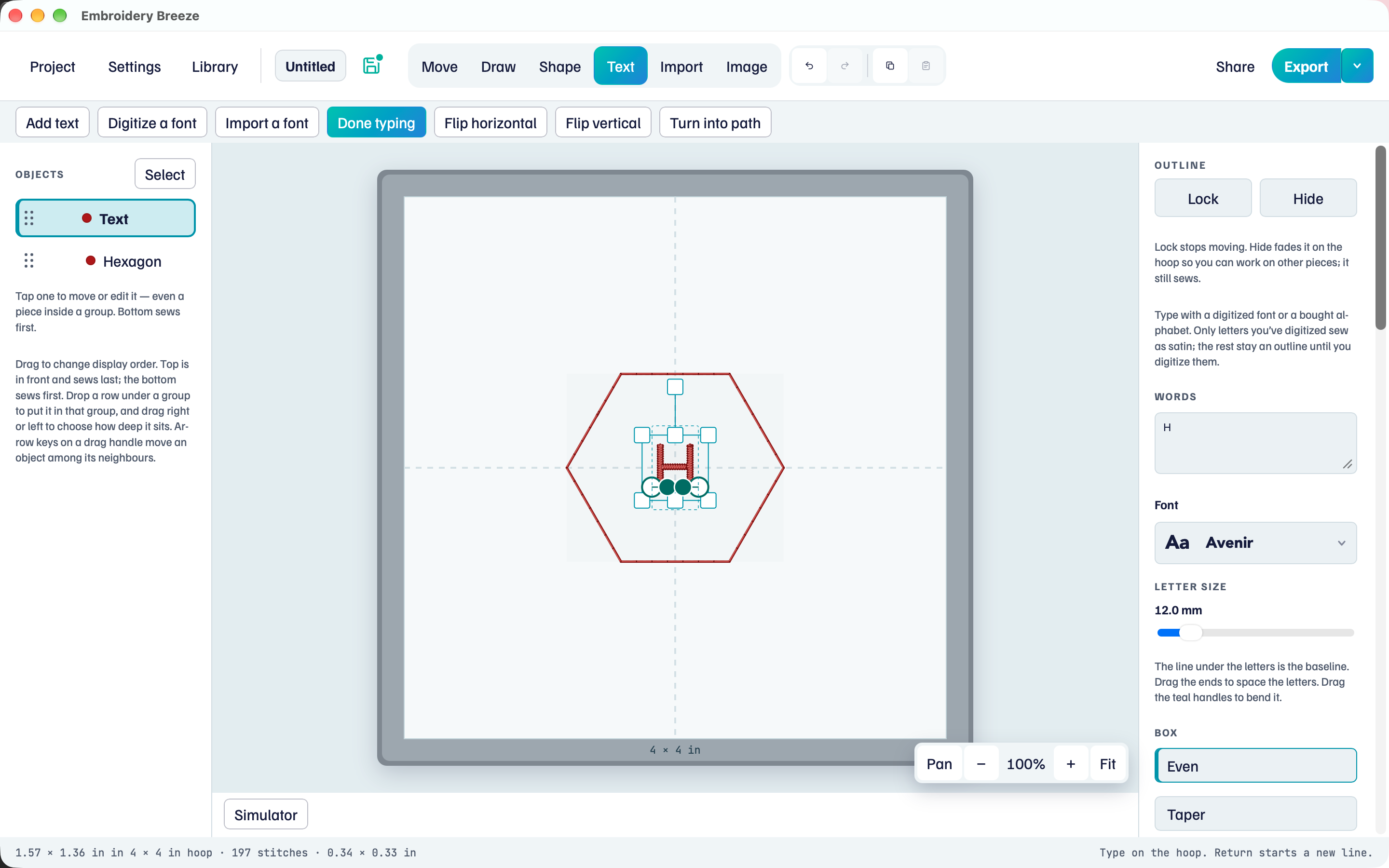
- Click Save.
- Click Editor.
- Click Text, then Add text. New text uses the font you just saved. Type Hi.
Missing letters on the hoop: Digitize it jumps back here on that letter. Bought alphabets do not open in the font digitizer. Their card opens Change mappings: Bought letter alphabets.